> ## Documentation Index
> Fetch the complete documentation index at: https://documentation.dioptra.ai/llms.txt
> Use this file to discover all available pages before exploring further.
# Flows: Automate Multi-Step Work with AI Agents
> Build, run, version, and publish flows in Vera Engage: repeatable multi-step workflows where AI agents work in parallel and pause for your approval.
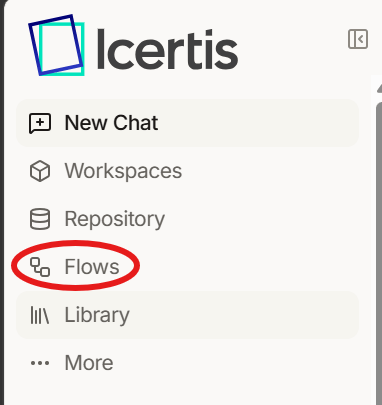
Flows turn a multi-step process into a repeatable workflow that Vera Engage runs for you. You describe the goal, the agent designs the steps with you in a chat, and once you approve, the flow is saved so you or your team can run it again and again. Open **Flows** from the left-hand menu of the web app to see every flow you own or that has been shared with you.
 ## When to use a flow
Use a flow when a task has several stages, needs to repeat across many items, or needs a human check partway through. For example:
* Update multiple playbooks at once
* Create an automated intake flow that gathers information, selects and runs a playbook, and saves the redlined agreement to the Icertis platform.
## How a flow is built
A flow is organized into **phases**, which show its progress while it runs. Each phase contains one or more steps:
| Step type | What it does |
| :- | :- |
| **Trigger** | The step that triggers the flow. |
| **Agent** | An AI agent completes one task, such as researching, extracting, or drafting. A step can use a skill from your [Library](/library). |
| **Fan-out** | Runs the same task once for every item in a list (for example, each contract), with agents working in parallel. |
| **Gate** | A checkpoint. A **manual** gate pauses the run and asks you a pass/fail question. An automatic gate has an agent judge whether a condition is met. If a gate fails, the flow either stops or retries an earlier step. |
| **Output** | The final outputs from the flow. |
Steps that don't depend on each other run at the same time, so flows can finish large jobs faster than working through them one by one.
## Create a flow
In the web app, click **Flows** in the left-hand menu, then click **New Flow**.
## When to use a flow
Use a flow when a task has several stages, needs to repeat across many items, or needs a human check partway through. For example:
* Update multiple playbooks at once
* Create an automated intake flow that gathers information, selects and runs a playbook, and saves the redlined agreement to the Icertis platform.
## How a flow is built
A flow is organized into **phases**, which show its progress while it runs. Each phase contains one or more steps:
| Step type | What it does |
| :- | :- |
| **Trigger** | The step that triggers the flow. |
| **Agent** | An AI agent completes one task, such as researching, extracting, or drafting. A step can use a skill from your [Library](/library). |
| **Fan-out** | Runs the same task once for every item in a list (for example, each contract), with agents working in parallel. |
| **Gate** | A checkpoint. A **manual** gate pauses the run and asks you a pass/fail question. An automatic gate has an agent judge whether a condition is met. If a gate fails, the flow either stops or retries an earlier step. |
| **Output** | The final outputs from the flow. |
Steps that don't depend on each other run at the same time, so flows can finish large jobs faster than working through them one by one.
## Create a flow
In the web app, click **Flows** in the left-hand menu, then click **New Flow**.
 Under **What should this flow accomplish?**, describe the outcome you want. Be specific about the inputs, the work, and the result.
Click **Attach documents** to add materials that should inform the flow, such as a sample contract, a checklist, or a template.
Click **Start drafting**. A chat opens where the agent asks clarifying questions and proposes the steps.
Review the proposed design and ask for any changes. The agent saves the flow once you approve it, and it appears on your **Flows** page.
## Explore a flow
Click any flow card to open it. Cards show **Shared with you** for flows someone else owns and a published badge (for example, **v2 published**) when a version has been published.
| Area | What it shows |
| :- | :- |
| **Flow** tab | Each phase and its steps. Expand a step to see its instructions, the skill it uses, the results it returns, and for gates, the question or condition and what happens if it fails. |
| **Runs** tab | The history of every run of this flow. |
| **Versions** | Every saved version of the flow, with a short message describing what changed. |
| **Chat** | Opens a chat beside the flow so you can ask questions about it or change it. |
| **Share** | Share the flow with colleagues. See [Share and publish](/sharingandpublishing). |
Use the **All** and **My Flows** filters on the Flows page to switch between every flow you can access and only the ones you created.
## Edit a flow
Open the flow, click **Chat**, and describe the change. For example:
* `Add a manual approval step before any emails are sent.`
* `Also flag missing limitation of liability clauses.`
Every save creates a new version of the flow. Earlier versions are kept, so you can always see how the flow changed over time. If you're an Owner or Editor, you can also rename the flow by clicking its title.
## Run a flow
Ask the chat to run the flow by name, for example `Run the termination clause review flow on my renewal contracts`. The agent gathers the inputs the flow needs and starts the run.
While it runs, a **Flow run** card in the chat shows the overall status, the time elapsed, and the status of each step. Fan-out steps are grouped so you can see how many items are completed, running, or failed. Click **Open run** for the full run view. When the run completes, the result appears in the card and the agent presents it in the chat.
### Approve a manual gate
When a run reaches a manual gate, it pauses with the status **Awaiting human** and the agent asks you the gate's question in the chat. Reply with your decision and any notes. If you approve, the run continues. If you reject, the flow follows the gate's instructions: it either stops or retries an earlier step with your notes so the agent can correct its work.
### Run statuses
| Status | Meaning |
| :- | :- |
| **Queued** | The run or step is waiting to start. |
| **Running** | Work is in progress. |
| **Awaiting human** | A manual gate is waiting for your decision. |
| **Completed** | The run or step finished successfully. |
| **Cancelled** | The run or step was stopped. |
| **Error** | Something went wrong. Completed steps are saved, so the agent can resume the run from where it stopped. |
## Publish a flow
Publishing makes a specific version of a flow available to whole teams. Publishers can publish flows to the teams where they're a Publisher. Users can build draft flows but can't publish them. See [Roles and teams](/administration#roles-and-teams).
When a flow is run, its Owners and Editors get the latest saved version by default, so they can test changes before publishing. Everyone else runs the published version.
Flows can send email when a step's instructions tell them to. Every recipient must be a member of your organization. To review messages before they go out, put a manual gate before the email step.
This documentation is built and hosted on [Mintlify](https://mintlify.com), a developer documentation platform.
Under **What should this flow accomplish?**, describe the outcome you want. Be specific about the inputs, the work, and the result.
Click **Attach documents** to add materials that should inform the flow, such as a sample contract, a checklist, or a template.
Click **Start drafting**. A chat opens where the agent asks clarifying questions and proposes the steps.
Review the proposed design and ask for any changes. The agent saves the flow once you approve it, and it appears on your **Flows** page.
## Explore a flow
Click any flow card to open it. Cards show **Shared with you** for flows someone else owns and a published badge (for example, **v2 published**) when a version has been published.
| Area | What it shows |
| :- | :- |
| **Flow** tab | Each phase and its steps. Expand a step to see its instructions, the skill it uses, the results it returns, and for gates, the question or condition and what happens if it fails. |
| **Runs** tab | The history of every run of this flow. |
| **Versions** | Every saved version of the flow, with a short message describing what changed. |
| **Chat** | Opens a chat beside the flow so you can ask questions about it or change it. |
| **Share** | Share the flow with colleagues. See [Share and publish](/sharingandpublishing). |
Use the **All** and **My Flows** filters on the Flows page to switch between every flow you can access and only the ones you created.
## Edit a flow
Open the flow, click **Chat**, and describe the change. For example:
* `Add a manual approval step before any emails are sent.`
* `Also flag missing limitation of liability clauses.`
Every save creates a new version of the flow. Earlier versions are kept, so you can always see how the flow changed over time. If you're an Owner or Editor, you can also rename the flow by clicking its title.
## Run a flow
Ask the chat to run the flow by name, for example `Run the termination clause review flow on my renewal contracts`. The agent gathers the inputs the flow needs and starts the run.
While it runs, a **Flow run** card in the chat shows the overall status, the time elapsed, and the status of each step. Fan-out steps are grouped so you can see how many items are completed, running, or failed. Click **Open run** for the full run view. When the run completes, the result appears in the card and the agent presents it in the chat.
### Approve a manual gate
When a run reaches a manual gate, it pauses with the status **Awaiting human** and the agent asks you the gate's question in the chat. Reply with your decision and any notes. If you approve, the run continues. If you reject, the flow follows the gate's instructions: it either stops or retries an earlier step with your notes so the agent can correct its work.
### Run statuses
| Status | Meaning |
| :- | :- |
| **Queued** | The run or step is waiting to start. |
| **Running** | Work is in progress. |
| **Awaiting human** | A manual gate is waiting for your decision. |
| **Completed** | The run or step finished successfully. |
| **Cancelled** | The run or step was stopped. |
| **Error** | Something went wrong. Completed steps are saved, so the agent can resume the run from where it stopped. |
## Publish a flow
Publishing makes a specific version of a flow available to whole teams. Publishers can publish flows to the teams where they're a Publisher. Users can build draft flows but can't publish them. See [Roles and teams](/administration#roles-and-teams).
When a flow is run, its Owners and Editors get the latest saved version by default, so they can test changes before publishing. Everyone else runs the published version.
Flows can send email when a step's instructions tell them to. Every recipient must be a member of your organization. To review messages before they go out, put a manual gate before the email step.
This documentation is built and hosted on [Mintlify](https://mintlify.com), a developer documentation platform.