> ## Documentation Index
> Fetch the complete documentation index at: https://documentation.dioptra.ai/llms.txt
> Use this file to discover all available pages before exploring further.
# Library: your reusable toolkit
> Build it once. Use it forever.
The Library holds the reusable assets for repeatable work: **prompts, skills, memories, and clauses**. Save something once and it's available to everyone you share it with, every time they open Vera Engage.
 **Where to find it:**
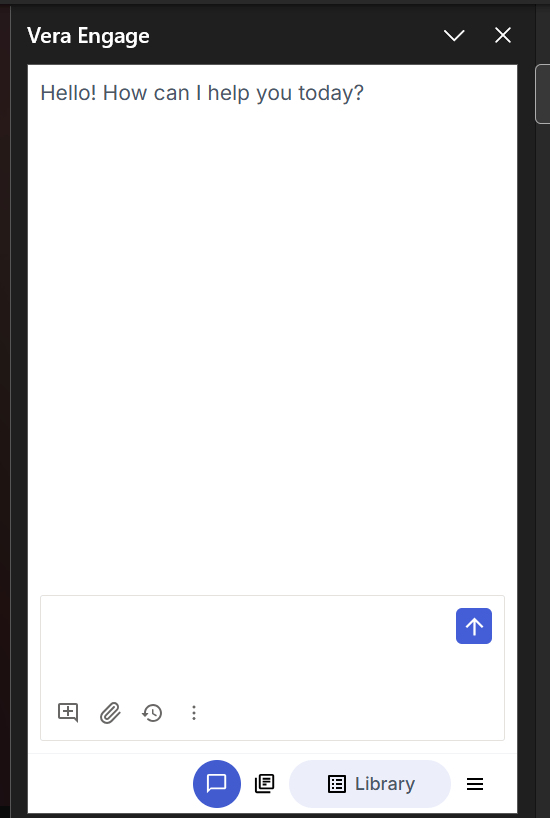
* **Word add-in:** the library icon in the floating menu at the bottom of the chat or through the three-dot menu.
**Where to find it:**
* **Word add-in:** the library icon in the floating menu at the bottom of the chat or through the three-dot menu.
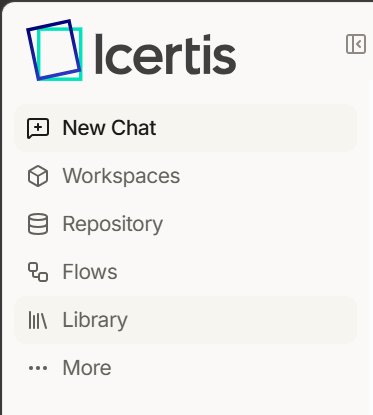
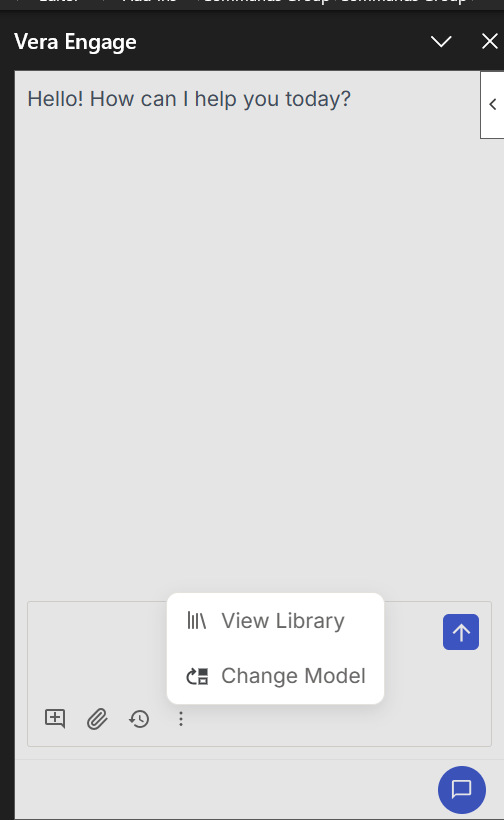 * **Web app:** from the left navigation menu or the three-dot menu.
 ## Asset types
Pre-written instructions for common tasks (a template you fill in).
* Out of the box: summarizing, drafting, redlining, and learning prompts
* Selecting one pre-populates the chat input; edit before sending
* Save a prompt straight from chat using the bookmark icon
* Share it with your team
Trained behaviors the agent applies when it recognizes the situation.
* Out of the box: Clean Up, Run Playbook, Tutorial, Gap Analysis, Summarize, and more
* Type the skill name or describe the task and the agent picks the skill
* Ask the agent to draft a new skill
* Share it with your team
Persistent facts the agent always knows. Save once, apply everywhere.
* Your company name and your role
* Basic company facts
* Private to you; cannot be shared
* Applied automatically across every chat
Your preferred clause language, ready during drafting and redlining.
* Find it under the hamburger menu › Clauses
* Insert clauses directly from chat while redlining
* Share clauses so the whole team uses consistent language
* Keep a single source of truth for approved language
## Role-based access controls (RBAC) for library assets
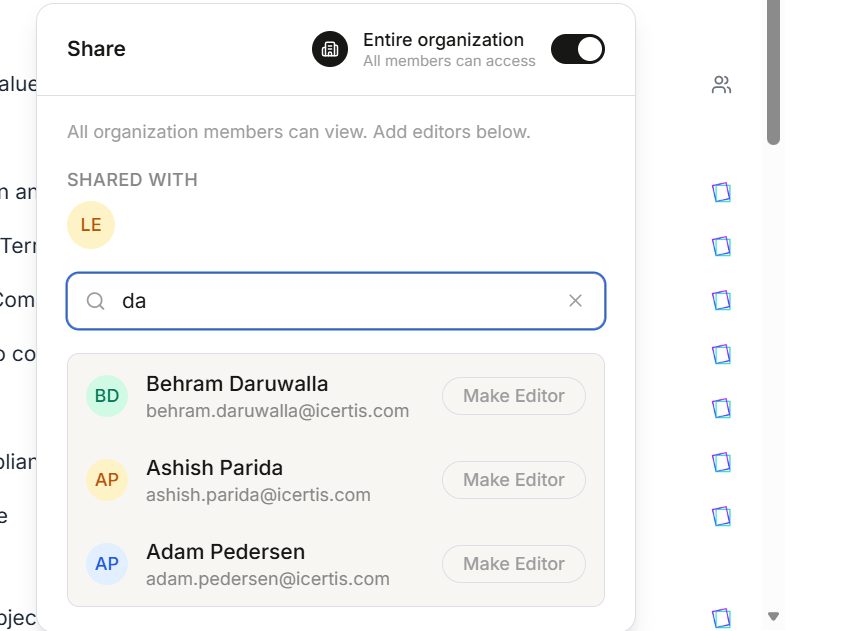
A library asset you create is private to you unless you share it with others in your organization. When you share, you can select to share with individuals as editors or viewers.
* **Editors** can modify the asset.
* **Viewers** can use the asset, but cannot change it.
Depending on your organizational role, you may have the ability to share assets with your entire organization as viewers with one click.
## Asset types
Pre-written instructions for common tasks (a template you fill in).
* Out of the box: summarizing, drafting, redlining, and learning prompts
* Selecting one pre-populates the chat input; edit before sending
* Save a prompt straight from chat using the bookmark icon
* Share it with your team
Trained behaviors the agent applies when it recognizes the situation.
* Out of the box: Clean Up, Run Playbook, Tutorial, Gap Analysis, Summarize, and more
* Type the skill name or describe the task and the agent picks the skill
* Ask the agent to draft a new skill
* Share it with your team
Persistent facts the agent always knows. Save once, apply everywhere.
* Your company name and your role
* Basic company facts
* Private to you; cannot be shared
* Applied automatically across every chat
Your preferred clause language, ready during drafting and redlining.
* Find it under the hamburger menu › Clauses
* Insert clauses directly from chat while redlining
* Share clauses so the whole team uses consistent language
* Keep a single source of truth for approved language
## Role-based access controls (RBAC) for library assets
A library asset you create is private to you unless you share it with others in your organization. When you share, you can select to share with individuals as editors or viewers.
* **Editors** can modify the asset.
* **Viewers** can use the asset, but cannot change it.
Depending on your organizational role, you may have the ability to share assets with your entire organization as viewers with one click.
 ## Getting around the Library
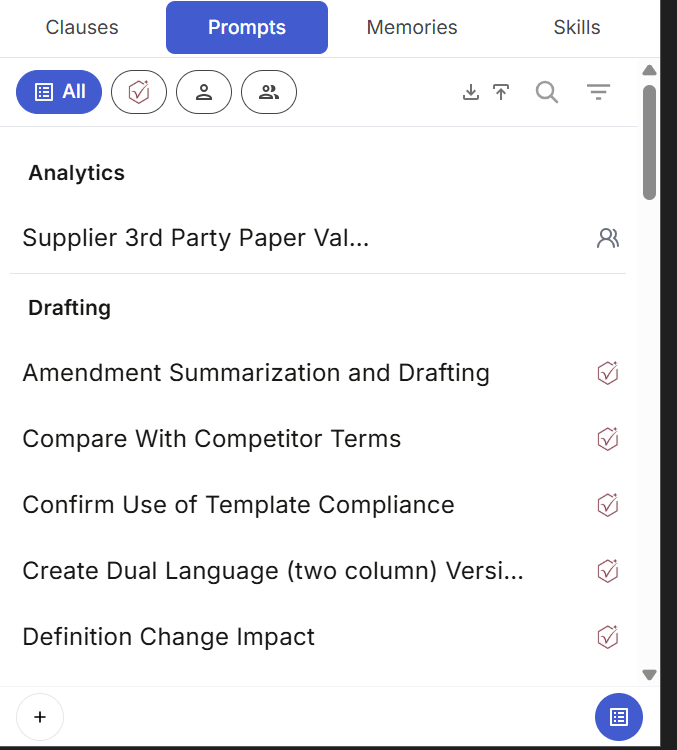
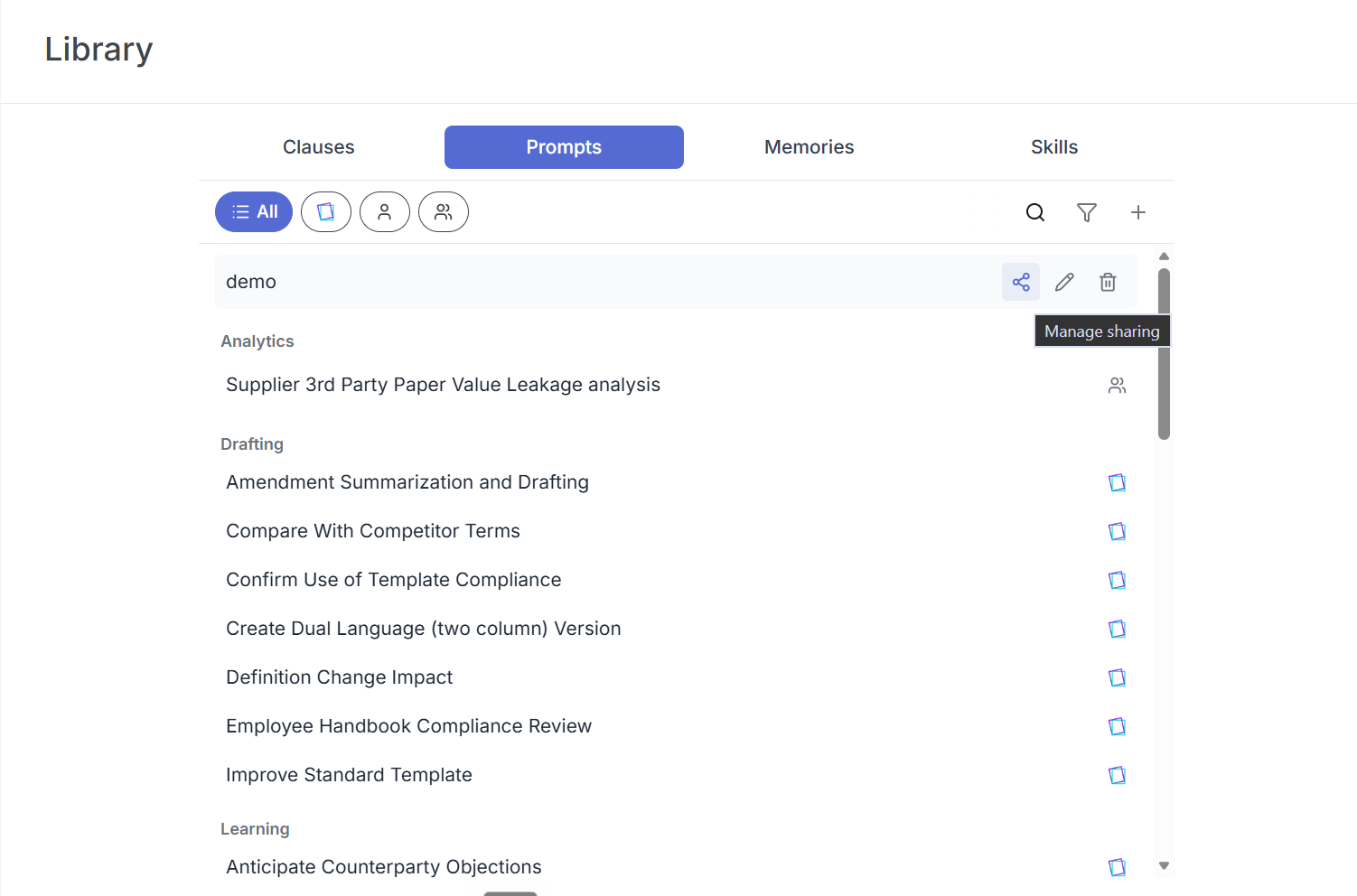
Each library type (Clauses, Prompts, Memories, Skills) opens in its own tab at the top of the panel. Within any tab:
| Control | What it does |
| :----------------------------------------------------------------------------- | :------------------------------------------- |
| **All** | Shows every item you have access to. |
| **Personal** | Items only you can see. |
| **Shared** | Items shared with your team or organization. |
| **Search** | Find an item by name. |
| **Filter** | Narrow by category, owner, or tag. |
| **Add** | Create a new item of that type. |
Items can be grouped by category (for example, Analytics, Drafting, Review) so you can browse when you don't know exactly what you're looking for.
Careful with the trash icon: shared prompts, skills, memories, files, and clauses delete for everyone on the team.
## Getting around the Library
Each library type (Clauses, Prompts, Memories, Skills) opens in its own tab at the top of the panel. Within any tab:
| Control | What it does |
| :----------------------------------------------------------------------------- | :------------------------------------------- |
| **All** | Shows every item you have access to. |
| **Personal** | Items only you can see. |
| **Shared** | Items shared with your team or organization. |
| **Search** | Find an item by name. |
| **Filter** | Narrow by category, owner, or tag. |
| **Add** | Create a new item of that type. |
Items can be grouped by category (for example, Analytics, Drafting, Review) so you can browse when you don't know exactly what you're looking for.
Careful with the trash icon: shared prompts, skills, memories, files, and clauses delete for everyone on the team.