> ## Documentation Index
> Fetch the complete documentation index at: https://documentation.dioptra.ai/llms.txt
> Use this file to discover all available pages before exploring further.
# Navigation Overview
> A quick tutorial on where to find things in our Word Add-in and our Web App.
## Word Add-In
### Overview
### Chat
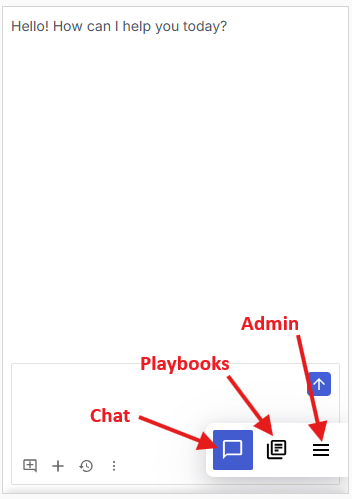
When you open the Dioptra Word Add-in, it will open here to our Chat. In the bottom right corner, you will find the menu bar which will persist as you navigate in the Add-in. If you navigate away from the Chat and want to return, click the conversation bubble icon.
### Playbooks
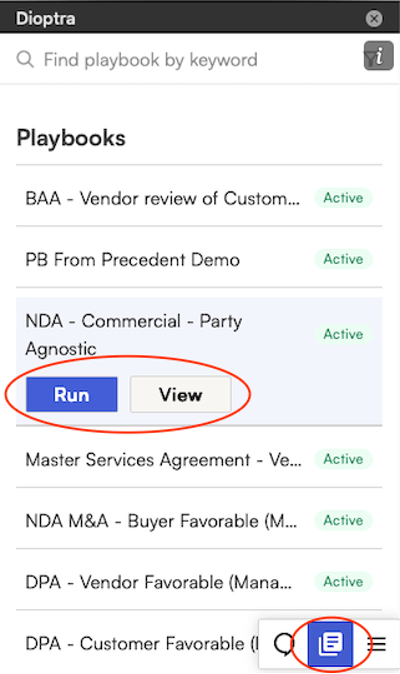
Click on the document icon to navigate to your available Playbooks. Click on a playbook name to get a choice of *Run* or *View* — see [Reviewing Contracts With Playbooks](/runningplaybooks) for details.
### Additional Features and Controls
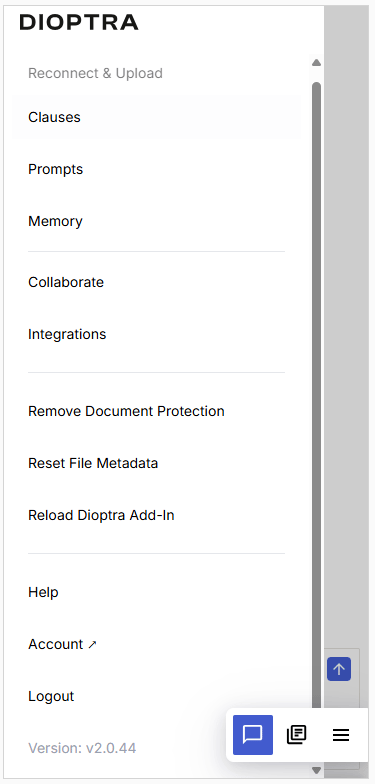
Selecting the Hamburger will open the below menu for you. Click in the gray space on the right to close the menu.
#### Reconnect & Upload
Upload as new draft to synced Icertis repository (ICI). Requires configuration and only available for Icertis customers.
#### Clauses
Navigate to your clause library to view saved clauses.
#### Memory
View your saved memories.
#### Prompts
View, edit, and add to your saved prompts.
#### Collaborate
Collaborate allows you to create and save conversations with your team members that will persist with the open document.
#### Integrations
Integrations allows you to see any existing workflows that have been set-up for your team.
#### Remove Document Protection
Downloads a new version of the open document with content controls removed.
#### Remove File Metadata
Remove File Metadata will DELETE all of your Dioptra engagement with the open document including your chat history and playbook runs (redlines and comments already added into the document will persist).
#### Reload Dioptra Add-in
Refresh the Dioptra Add-in.
#### Help
Help will open an email to [support@dioptra.ai](mailto:support@dioptra.ai).
#### Account
Account gives you access to your Word Add-in settings.
#### Logout
Logs you out of the Dioptra Word Add-In. The next time you open it, you will need to log in again.
## Web App
The Web App navigation bar looks like this:
### Chat
This gives you access to our AI chat Assistant, now untethered from Word.
### Contracts
This shows you all of the contracts for which a Playbook review was performed and enables the uploading of new contracts for Playbook review.
### Playbooks
This shows you a list of available playbooks and enables access to each one for review or modification. You can also create new playbooks and set up review workflows.
### Rules
This shows you the rule bank containing all of the rules you've created plus the Dioptra created rules that we make available for you to add to any existing or new playbook.
### Extractions
This is the interface for extracting data from Word or PDF documents in bulk.
### Repositories
Access your connected document repositories to query the contents of your documents with our AI chat Assistant and generate reports.
 ### Playbooks
Click on the document icon to navigate to your available Playbooks. Click on a playbook name to get a choice of *Run* or *View* — see [Reviewing Contracts With Playbooks](/runningplaybooks) for details.
### Playbooks
Click on the document icon to navigate to your available Playbooks. Click on a playbook name to get a choice of *Run* or *View* — see [Reviewing Contracts With Playbooks](/runningplaybooks) for details.
 ### Additional Features and Controls
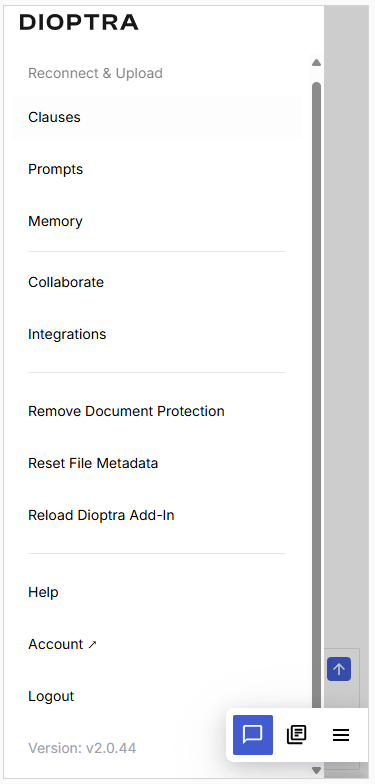
Selecting the Hamburger will open the below menu for you. Click in the gray space on the right to close the menu.
### Additional Features and Controls
Selecting the Hamburger will open the below menu for you. Click in the gray space on the right to close the menu.
 #### Reconnect & Upload
Upload as new draft to synced Icertis repository (ICI). Requires configuration and only available for Icertis customers.
#### Clauses
Navigate to your clause library to view saved clauses.
#### Memory
View your saved memories.
#### Prompts
View, edit, and add to your saved prompts.
#### Collaborate
Collaborate allows you to create and save conversations with your team members that will persist with the open document.
#### Integrations
Integrations allows you to see any existing workflows that have been set-up for your team.
#### Remove Document Protection
Downloads a new version of the open document with content controls removed.
#### Remove File Metadata
Remove File Metadata will DELETE all of your Dioptra engagement with the open document including your chat history and playbook runs (redlines and comments already added into the document will persist).
#### Reload Dioptra Add-in
Refresh the Dioptra Add-in.
#### Help
Help will open an email to [support@dioptra.ai](mailto:support@dioptra.ai).
#### Account
Account gives you access to your Word Add-in settings.
#### Logout
Logs you out of the Dioptra Word Add-In. The next time you open it, you will need to log in again.
## Web App
The Web App navigation bar looks like this:
#### Reconnect & Upload
Upload as new draft to synced Icertis repository (ICI). Requires configuration and only available for Icertis customers.
#### Clauses
Navigate to your clause library to view saved clauses.
#### Memory
View your saved memories.
#### Prompts
View, edit, and add to your saved prompts.
#### Collaborate
Collaborate allows you to create and save conversations with your team members that will persist with the open document.
#### Integrations
Integrations allows you to see any existing workflows that have been set-up for your team.
#### Remove Document Protection
Downloads a new version of the open document with content controls removed.
#### Remove File Metadata
Remove File Metadata will DELETE all of your Dioptra engagement with the open document including your chat history and playbook runs (redlines and comments already added into the document will persist).
#### Reload Dioptra Add-in
Refresh the Dioptra Add-in.
#### Help
Help will open an email to [support@dioptra.ai](mailto:support@dioptra.ai).
#### Account
Account gives you access to your Word Add-in settings.
#### Logout
Logs you out of the Dioptra Word Add-In. The next time you open it, you will need to log in again.
## Web App
The Web App navigation bar looks like this:

 ### Chat
This gives you access to our AI chat Assistant, now untethered from Word.
### Contracts
This shows you all of the contracts for which a Playbook review was performed and enables the uploading of new contracts for Playbook review.
### Playbooks
This shows you a list of available playbooks and enables access to each one for review or modification. You can also create new playbooks and set up review workflows.
### Rules
This shows you the rule bank containing all of the rules you've created plus the Dioptra created rules that we make available for you to add to any existing or new playbook.
### Extractions
This is the interface for extracting data from Word or PDF documents in bulk.
### Repositories
Access your connected document repositories to query the contents of your documents with our AI chat Assistant and generate reports.
### Chat
This gives you access to our AI chat Assistant, now untethered from Word.
### Contracts
This shows you all of the contracts for which a Playbook review was performed and enables the uploading of new contracts for Playbook review.
### Playbooks
This shows you a list of available playbooks and enables access to each one for review or modification. You can also create new playbooks and set up review workflows.
### Rules
This shows you the rule bank containing all of the rules you've created plus the Dioptra created rules that we make available for you to add to any existing or new playbook.
### Extractions
This is the interface for extracting data from Word or PDF documents in bulk.
### Repositories
Access your connected document repositories to query the contents of your documents with our AI chat Assistant and generate reports.