> ## Documentation Index
> Fetch the complete documentation index at: https://documentation.dioptra.ai/llms.txt
> Use this file to discover all available pages before exploring further.
# Repository
> Your solution for finding contract data points from your existing agreements in bulk
Which contracts allow assignment without consent? How many contracts include non-standard data use rights? What are the emails for security breach notices?
Find answers to questions like these across hundreds of contracts in minutes (not weeks).
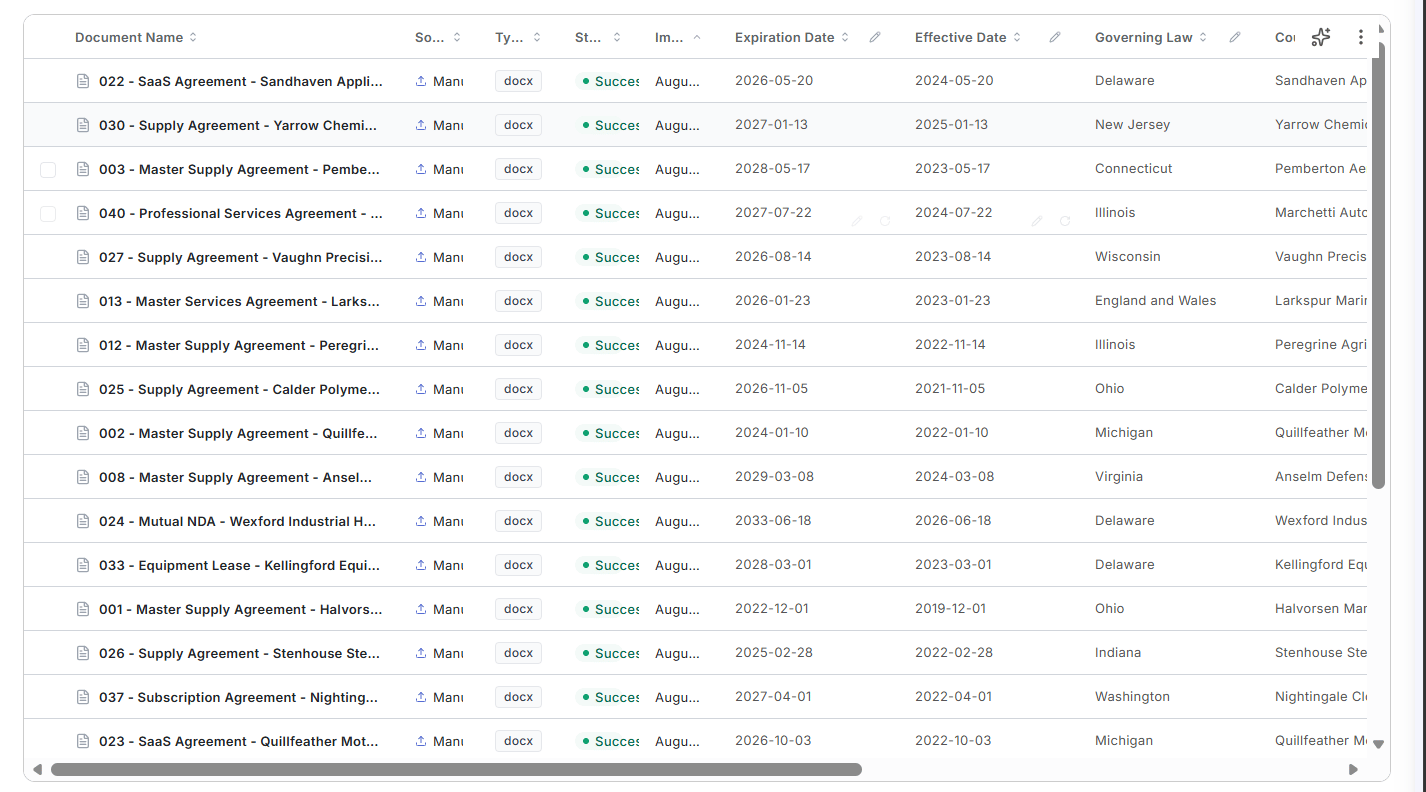 ### Creating an AI Column
You can ask for yes/no answers, actual extracted text, or summaries of issues.
Here are some prompting instructions that you might find useful:
* Extracting language: "extract the complete language pertaining to....."
* Returning yes/no responses: return the results as "Yes" or "No"
* Summary: describe....
Here are some specific frequently used prompts:
* **Counterparty Identification**: The party to the agreement that is not "your own company name"
* **Document Type**: describe the type of document (e.g. email. master agreement, purchase order, amendment, etc)
* **Short Summary**: one sentence summary of the document
* **Parent Agreement Identification**: For documents that are purchase orders, orders, quotes, amendments, or other forms of documents that are related to (but are not) top-level agreements, identify the name and date of the controlling/top-level agreement (e.g. the master agreement, the software license agreement, etc).
## Where documents come from
Documents arrive in the repository two ways:
* **From a connected source** - imported automatically from a system such as your Icertis instance.
* **By manual upload.**
The settings panel lets you import, activate, and edit each source.
### Connecting an Icertis source
A connected Icertis source imports agreements automatically (on a schedule or on demand) and keeps them in sync.
Give the source a name (for example, `TFS Contracts`) and choose **Icertis** as the integration.
An import filter limits what comes across, so you are not syncing your entire instance. The filter runs against the Agreement entity. Examples:
```text theme={null}
Name $like 'MSA*'
Status $eq 'Executed'
ModifiedDate $bt ['2026-01-01T00:00:00', '2026-06-14T00:00:00']
```
Click **Preview** to see the live match count before anything imports (for example, *Filter matches 641 records*) along with the first few matching agreements and their entity types.
The schedule is a standard cron expression, in the order minute / hour / day / month / weekday. For example, `0 */6 * * *` runs every six hours.
Leave the schedule empty for manual imports only.
Click **Create Source**. The first import begins according to the schedule you set, or when you trigger it manually.
Always run **Preview** before creating a source. A filter that is broader than you intended is much easier to catch at 641 records than after the import.
## Grouping agreements into families
Related agreements group into **families** so a master agreement and its amendments stay together instead of appearing as unrelated documents.
* Group by parent contract or by folder.
* For a connected Icertis source, the Icertis parent contract ID is used to build the family automatically.
Families matter for querying. A question asked across a repository of families returns the master and its amendments as one answer rather than several partial ones.
### Creating an AI Column
You can ask for yes/no answers, actual extracted text, or summaries of issues.
Here are some prompting instructions that you might find useful:
* Extracting language: "extract the complete language pertaining to....."
* Returning yes/no responses: return the results as "Yes" or "No"
* Summary: describe....
Here are some specific frequently used prompts:
* **Counterparty Identification**: The party to the agreement that is not "your own company name"
* **Document Type**: describe the type of document (e.g. email. master agreement, purchase order, amendment, etc)
* **Short Summary**: one sentence summary of the document
* **Parent Agreement Identification**: For documents that are purchase orders, orders, quotes, amendments, or other forms of documents that are related to (but are not) top-level agreements, identify the name and date of the controlling/top-level agreement (e.g. the master agreement, the software license agreement, etc).
## Where documents come from
Documents arrive in the repository two ways:
* **From a connected source** - imported automatically from a system such as your Icertis instance.
* **By manual upload.**
The settings panel lets you import, activate, and edit each source.
### Connecting an Icertis source
A connected Icertis source imports agreements automatically (on a schedule or on demand) and keeps them in sync.
Give the source a name (for example, `TFS Contracts`) and choose **Icertis** as the integration.
An import filter limits what comes across, so you are not syncing your entire instance. The filter runs against the Agreement entity. Examples:
```text theme={null}
Name $like 'MSA*'
Status $eq 'Executed'
ModifiedDate $bt ['2026-01-01T00:00:00', '2026-06-14T00:00:00']
```
Click **Preview** to see the live match count before anything imports (for example, *Filter matches 641 records*) along with the first few matching agreements and their entity types.
The schedule is a standard cron expression, in the order minute / hour / day / month / weekday. For example, `0 */6 * * *` runs every six hours.
Leave the schedule empty for manual imports only.
Click **Create Source**. The first import begins according to the schedule you set, or when you trigger it manually.
Always run **Preview** before creating a source. A filter that is broader than you intended is much easier to catch at 641 records than after the import.
## Grouping agreements into families
Related agreements group into **families** so a master agreement and its amendments stay together instead of appearing as unrelated documents.
* Group by parent contract or by folder.
* For a connected Icertis source, the Icertis parent contract ID is used to build the family automatically.
Families matter for querying. A question asked across a repository of families returns the master and its amendments as one answer rather than several partial ones.