.svg?fit=max&auto=format&n=4BvtygOXs3hHZrao&q=85&s=2d54ce0d4e48743a47aceb6e35df0475)
.svg?fit=max&auto=format&n=4BvtygOXs3hHZrao&q=85&s=a95703c6206c13aa4cd56f983e822a01)
- Run Playbook in the Word Add-in for Real Time Review.
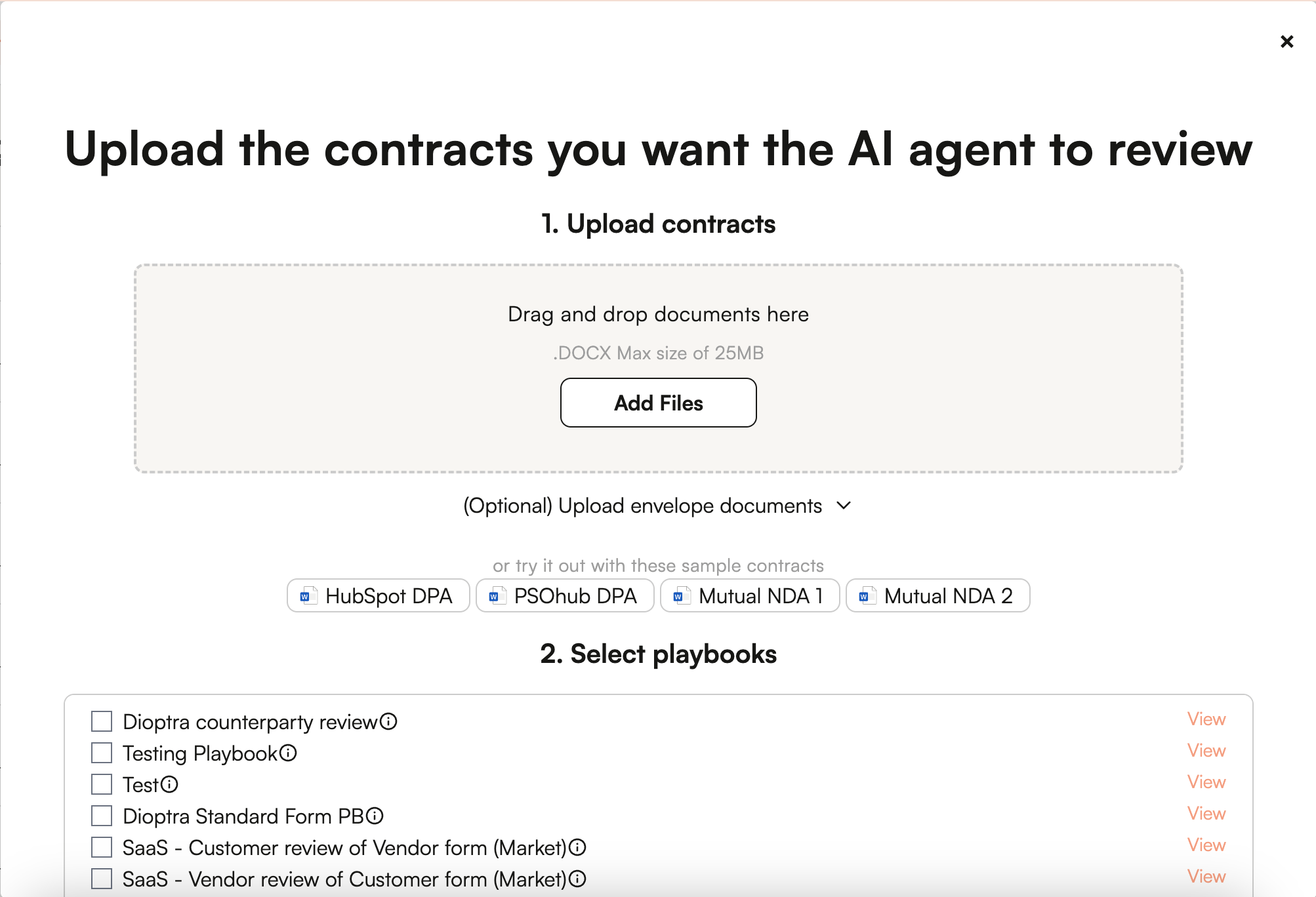
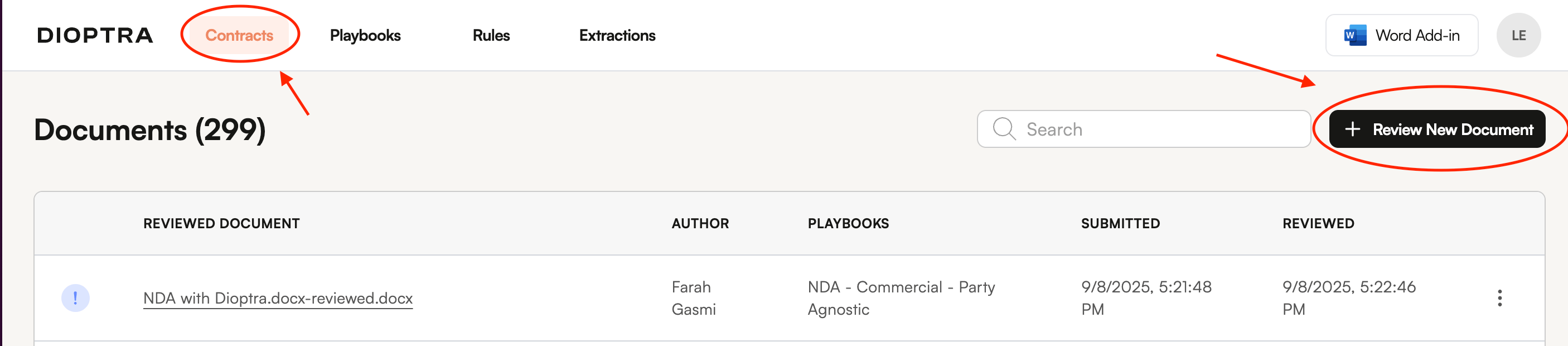
- Autonomous Review through the Web App, which also allows the kick off review of multiple documents at a time for the same playbook.
- Autonomous Review through an Integration, such as through LawVu or Ironclad, adds an automated review as a step before the contract goes to the reviewer or can enable stakeholder self-help.
- Real Time Review quickly provides a risk score, issues list, and suggested redlines and comments that you can selectively apply.
- Autonomous Review takes a little longer because it automatically applies the redlines and comments in addition to providing the risk score and issues list. You will receive an email with the redlined document or stay on the submission page to see when it is ready for download.
Reviewing with Playbooks in the Word Add-In
Kick Off a Review
- Open the agreement you want to review in Word.
- Open the Dioptra Add-In.
- Click on the document icon in the middle of the navigation bar at the bottom of the Chat to navigate to your available Playbooks.
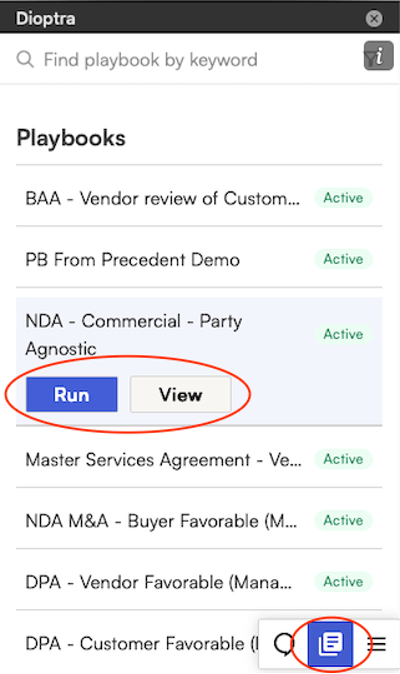
- Click on a playbook name to get a choice of Run or View. Run will kick off a playbook review of the agreement you have open in Word. View will open the playbook so you can see and edit the existing playbook rules.
Issue Cards
The playbook run will generate issue cards for each playbook rule/guideline and show you the overall risk compliance score based on the number of issues that have been triggered by the agreement you are reviewing. Open any card to see an explanation of the rule, any internal guidance that you’ve included, the reason the rule was triggered, and the redlines that were made or are being proposed. Click “go to issue” to navigate to the relevant section of the contract in Word.Applying individual Redlines
If you like the redlines, you can click apply changes now or apply them in bulk as described below. If you want redlines but don’t like the redlines suggested by the AI, click the chevron next to “Regenerate” and explain what changes you want to the redlines in general terms and click Regenerate. If you don’t want to redline at all and you want to accept the counterparty position, choose “Concede” so that the rule doesn’t trigger on future reviews of the contract.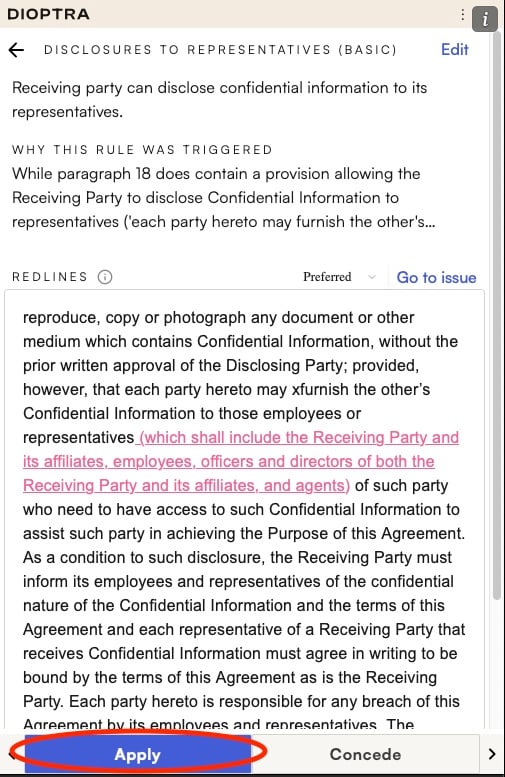
Applying Redlines In Bulk
To apply all the redlines simultaneously, select “Apply all” from the playbook run view.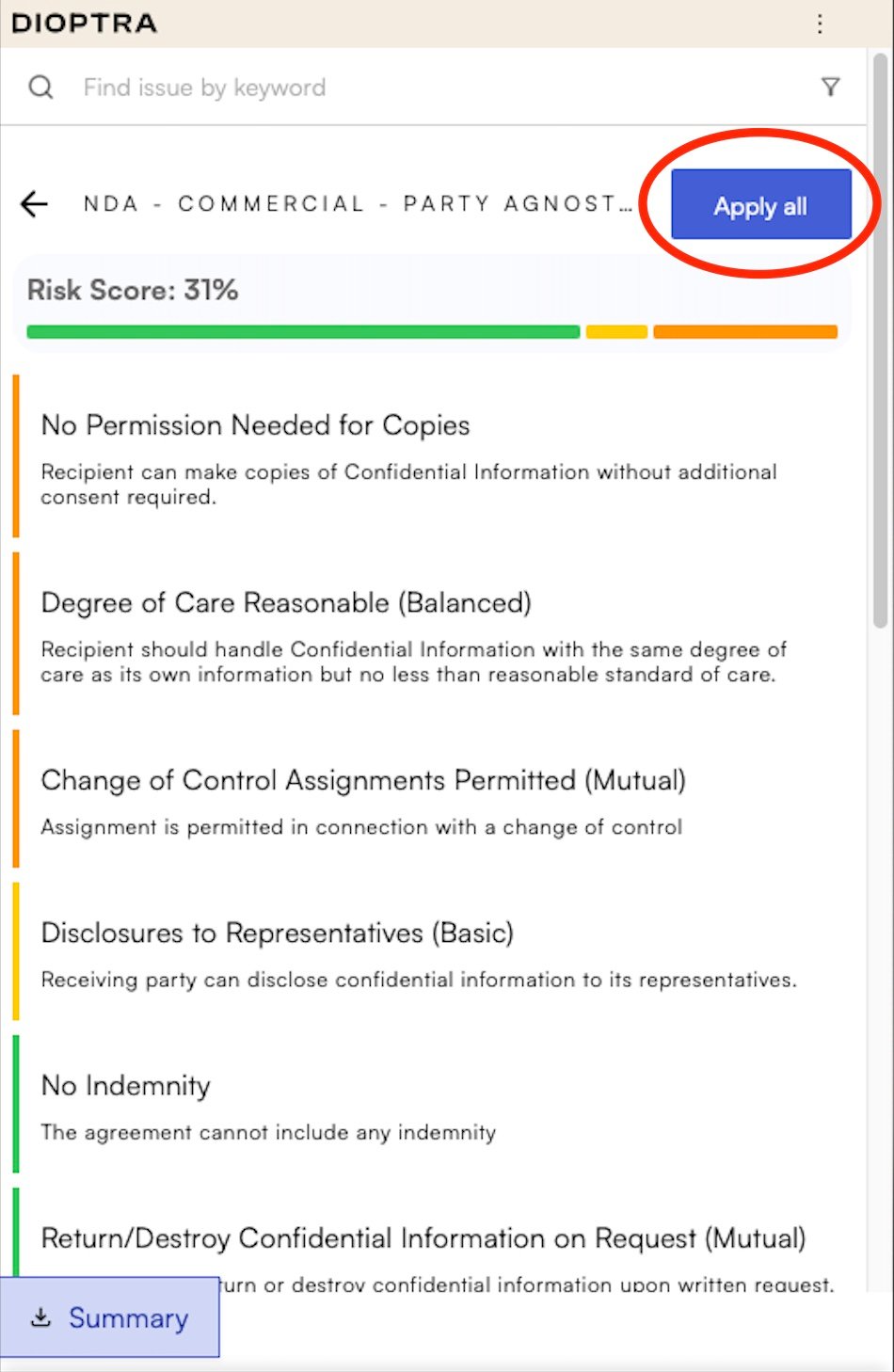
Real-Time Review Video
Kicking Off Reviews in the Web App
Kicking off reviews in the Web App is simple. When you open the Web App, it opens to this screen: