What you can do
Analyze & review
- Issue spot
- Summarize one or more documents
- Create an issues list
- Explain concepts
Compare & extract
- Comparative tables for documents
- Compare documents against regulations or other materials
Research & practice
- Research issues on the internet
- Practice negotiations
Prompting tips
Best practices
- Give context - think of Vera Engage as a great lateral hire - they know a lot about contracting, but not that much about your company or how to work with you. Give Vera Engage the same information you would need to give that lateral hire. See below for ways you can add that context.
- Be clear on your desired outputs - the format you want for the outputs, the specific data points you want included, etc.
Ways to add context
Grounding the agent in the right context is the single biggest lever on the quality of what comes back. Vera Engage gives you many ways to provide it.Say it in the chat
Say it in the chat
The agent already reads your open document. You supply the perspective.
- “Identify the top 3 risks for the vendor.”
- “I represent the supplier. Flag any one-sided indemnification.”
Attach a reference document
Attach a reference document
Click + in the chat panel and attach your standard form, a prior redline, a term sheet, negotiation notes, or anything else that informs the agent about the deal or your positions.
Save files for reuse
Save files for reuse
Documents you reach for constantly, such as your standard form or your playbook, can be added to saved files with the +, and shared with your team using the share icon.
Save a memory
Save a memory
Facts the agent should always know, without you repeating them.
- “I always represent [Company] as the vendor.”
- “We are headquartered in [Bellevue, Washington].”
Query your Icertis repository
Query your Icertis repository
If you have a connected repository, it is a context source in its own right. Ask the agent to find:
- Similar agreements, or similar clauses
- Other agreements with the same counterparty
- Your standard templates
Pull in context from the Icertis platform
Pull in context from the Icertis platform
If your organization is connected to the Icertis platform, the agent can reach into ICI to:
- Pull a template to start drafting from
- Check the workflow state of an in-flight agreement
- Gather metadata about the deal (parties, dates, values, and other attributes)
Create a prompt or a skill
Create a prompt or a skill
Turn a repeated instruction into a saved asset your whole team can reuse.
- Prompts are pre-written instructions you fill in for common tasks.
- Skills are trained behaviors the agent applies when it recognizes the situation.
When you have too much context
Context is not free. A long conversation that has wandered across many pathways carries all of it forward, and results can degrade rather than improve. If you are not getting the results you want:- Click New Chat to clear context that is wrong or no longer relevant.
- Use the clock icon to return to any earlier conversation. Nothing is lost by starting fresh.
Vocabulary
Use these keywords in your prompt to shape the output.Artifacts and outputs
When the agent produces something substantial (a drafted amendment, a gap analysis table, an issues list) it is saved as an artifact.In the Word add-in
Documents and tables the agent creates appear as artifacts in the chat.- Look for the red dot on the paperclip, then click Add document to reach the created artifact.
- The download icon saves an output as a
.docx. - The copy icon copies the output text.
- Tables and analyses render inline in the chat. Hyperlinks in a table jump straight to the relevant contract section.
In the web app
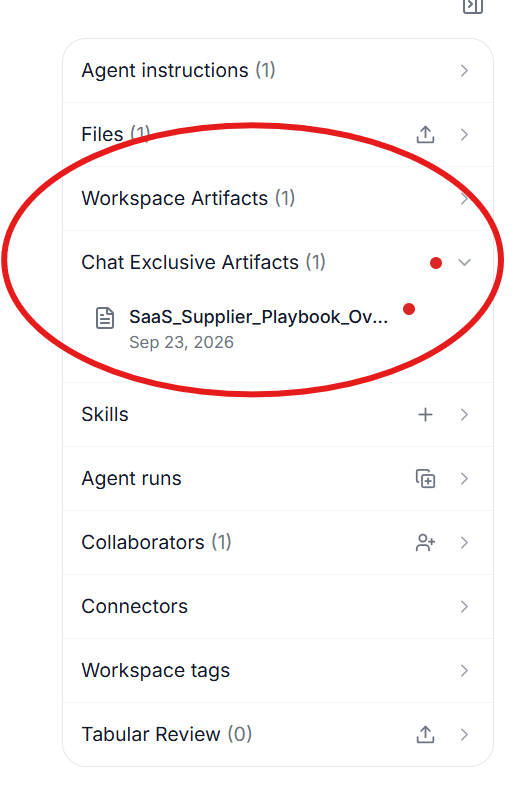
Documents and tables created in chat are saved as artifacts and pinned to the Outputs panel on the right of the screen, where they persist.- Tables download as
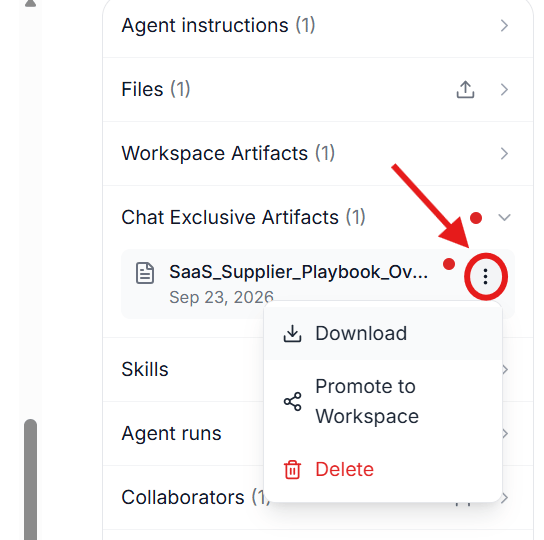
.xlsxstraight from the panel. - In a workspace, an artifact can be promoted to a workspace artifact — see Artifacts in a workspace for what that makes available.
- Click the three-dot menu on any artifact to Download, Promote to Workspace, or Delete it.