
Redline with Saved Playbooks
Redline with Saved Playbooks
Redline to Match Your Own Standard Form
Redline to Match Your Own Standard Form
What to use: the Agreement, the Chat, your Standard Form.
- Open the Agreement, open the Word Add-in, select Chat.
- Attach your standard form.
- Tell Chat to redline the agreement based on your attached standard form. It is helpful to provide additional context around what is most important to you, details about the transaction, and how aggressive to make the redline.
- Review the suggestions and apply, regenerate, or ignore.
Redline Based on Market
Redline Based on Market
What to use: the Agreement, the Chat.
- Open the Agreement, open the Word Add-in, select Chat.
- Tell Chat to redline the agreement to make it market. It is helpful to provide additional context around what is most important to you, details about the transaction, and how aggressive to make the redline.
- Review the suggestions and apply, regenerate, or ignore.
Redline Based on a Prior Redline
Redline Based on a Prior Redline
What to use: the new agreement, the redlined agreement, the Chat.
- Open the new agreement, open the Word Add-in, select Chat.
- Attach the redlined document to the Chat. Use the + to navigate to add files. It will bring you here. Click in the gray box to add your document if you want to just use the document once. If you want to use it more frequently, you can also use the + to the right of the Saved Files to save your document for future reviews as well.
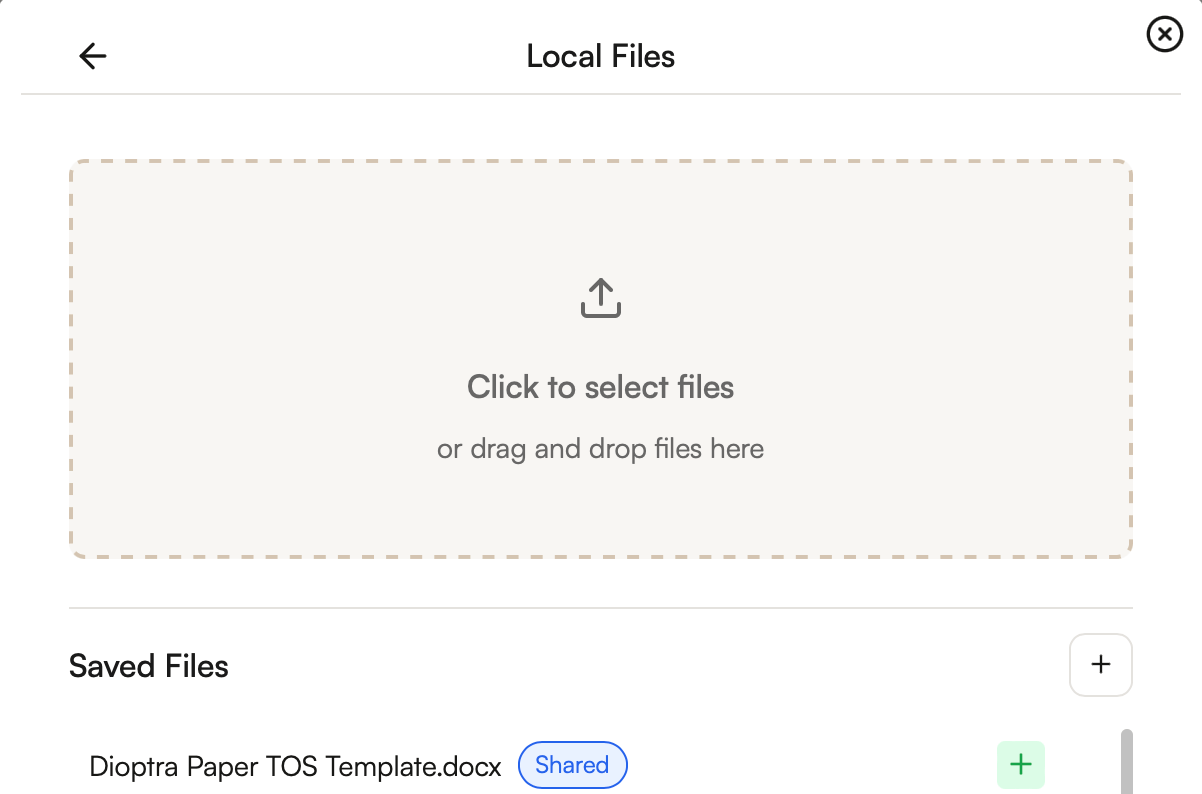
- Tell Chat to propose redlines for the open agreement that reflect the redlines in the attached agreement. Give the Chat any additional relevant context - how faithful to the prior redlines the new redlines should be, what the two documents are, specific sections to focus on or ignore, etc.
Incorporating Hyperlinked Terms
Incorporating Hyperlinked Terms
What to use: the Agreement, the Chat.
- Open the Agreement, open the Word Add-in, select Chat.
- Tell Chat to create markdown versions on any of the hyperlinked terms.
- Use the button next to the markdown versions to copy the text and insert into your agreement.
You can also use Chat to create a table comparing the content in the hyperlinked terms with the content in your agreement and identify any discrepancies.
Redline With Your Guidelines
Redline With Your Guidelines
What to use: the agreement, the guidelines, the Chat.
- Open the agreement, open the Word Add-in, select Chat.
- Attach the guidelines to the Chat the same way as described above.
- Tell Chat to propose redlines for the agreement that reflect the attached guidelines. Give the Chat any additional relevant context - how the guidelines are organized, what side of the agreement you are on, specific sections to focus on or ignore, whether to propose changes for concepts where you don’t have guidelines, etc.
Agreement Clean-Up
Agreement Clean-Up
What to use: the agreement, the Chat.
- Open the agreement, open the Word Add-in, select Chat.
-
Type “Clean Up” to kick off a search for undefined terms, wrong capitalization, missing definitions, cross reference errors, incomplete sentences, incorrect exhibit references, missing signature blocks, missing information, duplicative sections, and conflicting obligations.
You can also use our managed prompts for Defined Term Clean Up and Cross-Reference Checks if you want to perform a more narrow clean up.
- Defined Term Clean Up: You are an experienced transactional lawyer. Check the agreement for (1) any defined terms that are not being used in the contract, (2) defined terms improperly capitalized, (3) defined terms that are missing definitions. Create a table that shows each defined term error with section references, citations, and the applicable text. Ask the user if they want you to propose redlines to fix the errors.
- Cross-Reference Check: You are an experienced transactional lawyer. Check the agreement for any potential cross-reference errors. Create a table that shows each potential cross-reference error. There should be 6 columns -(1) the section number and title and the language containing the potential cross reference error (2) the citation for (1), (3) the section number and title and the language that the cross reference is currently pointing to, (4) the citation for (3), (5) the section number and title and the language for the section that is probably intended to be cross referenced, (6) the citation for 5.
Redline Amendments
Redline Amendments
What to use: the new amendment, the original agreement and any prior amendments, the Chat.
- Open the new amendment, open the Word Add-in, select Chat.
- Attach the original agreement and any prior amendments to the Chat.
- Tell Chat which party you are and that you are reviewing the current amendment. Ask it to create a table with a column for the section numbers and titles, a column for the original agreement, a column for each attached amendment, a column for the current amendment, and a final column analyzing the effect of the current amendment. The table should have a row for each section of the original agreement that has been amended by one or more amendments and a row for any net new content in any amendment that doesn’t relate to a section of the original agreement.
- You can use the table to analyze the amendment and collaborate with team members on how you want to respond.
- Tell the Chat to propose redlines to the amendment based on your preferred responses.