
Share something
When you share something, you choose what each person can do with it:
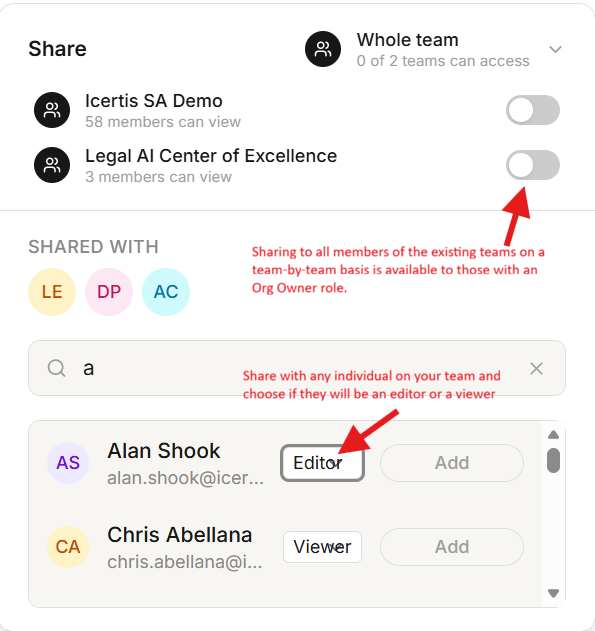
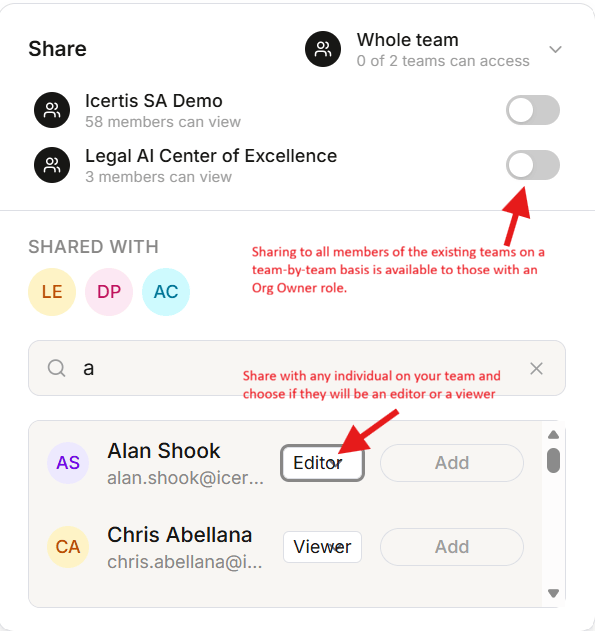
You can share with individual colleagues on your team as Editors or Viewers. If you’re an Org Owner, you can also share with everyone on a team, one team at a time, as Viewers.
What you can share
You can share these: workspaces; playbooks and flows; skills and prompts; clauses; saved files. These always stay private to you:- Chats. Your chats are yours, even in a shared workspace.
- Chat artifacts. These are the documents and tables Vera Engage creates in your chat. To share one, move it into a workspace as a workspace artifact. Everyone who has the workspace then gets it.
- Memories. The facts Vera Engage remembers about you.
What you share when you share a workspace
Workspaces are containers. When you share a workspace, people get the contents of the right-hand panel (files, workspace artifacts, tabular views, skills and collaborators) with the same permission you gave them on the workspace: Viewer or Editor. Your chats and chat artifacts stay private. To share a workspace, click the collaborators icon.Copy, archive and delete
- Copy: If you’re an Owner or Editor of a workspace, flow, skill or prompt, you can copy it. When you copy a workspace, everything in it is copied except the chats, chat artifacts and collaborators. You own the copy, and it’s private until you share it.
- Archive: If you’re an Owner or Editor of a workspace that you don’t want anyone to use anymore, you can archive it. Once it’s archived, nobody can open it, including you.
- Delete: Only the Owner can delete something permanently. To delete something that’s archived, unarchive it first.
Agreements from your repository
For agreements that come from your connection to the Icertis platform, you see only the agreements you have full access to in Icertis Contract Intelligence (ICI). That’s still true when someone adds agreements to a shared workspace’s tabular review. Each person sees only the agreements their own ICI access allows.For information about roles and who can share with whom, see Roles and teams on the Administration page.